BSc Thesis - Unity DOTS
About the Project
Multiplayer Applications and Games on Unity DOTS Architecture is my bachelor’s degree thesis in Computer Engineering, discussed in March 2021 at Alma Mater Studiorum, University of Bologna, under the supervision of Prof. Paolo Bellavista and the co-supervision of Dott. Andrea Garbugli.
The paper had two goals: analysing the data-oriented layout that Unity was introducing with its new Data-Oriented Technology Stack (DOTS), and proving it actually worked by building a fully playable multiplayer prototype made entirely with DOTS — no GameObjects, no MonoBehaviours in the gameplay code.


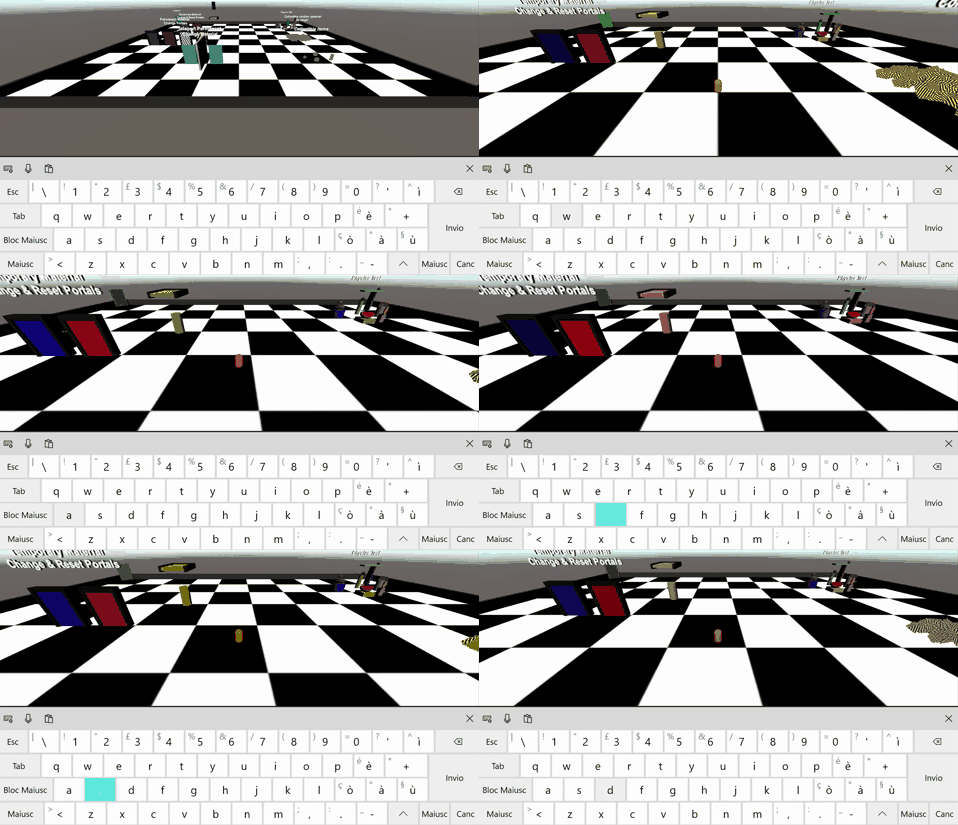
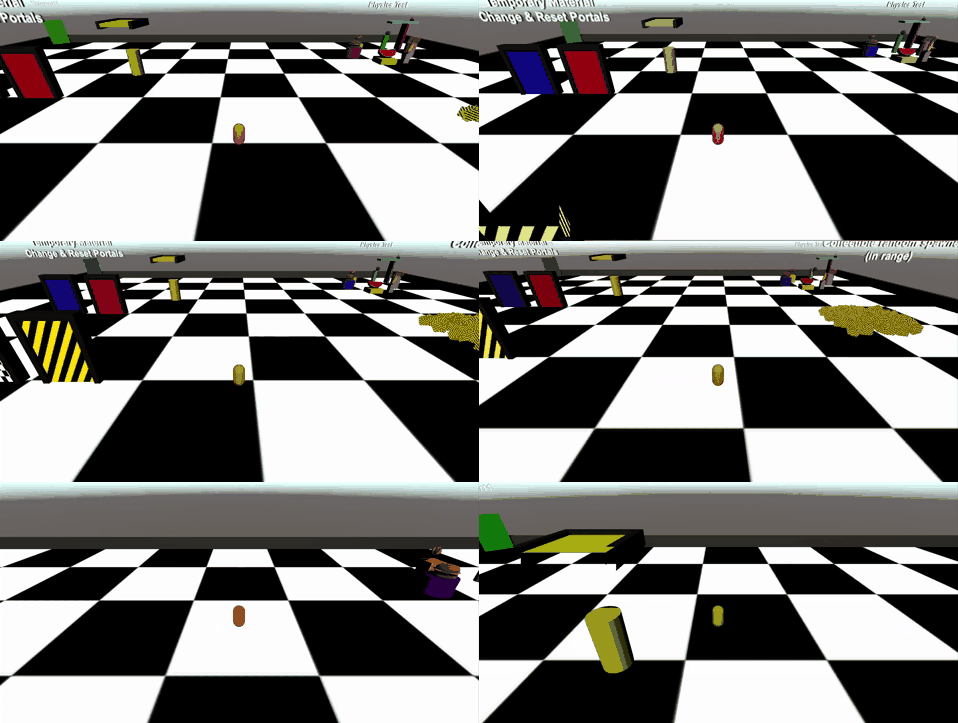
The two recordings above show the same match from two different machines: a headless server and two connected clients, one running inside the Unity editor and one as a standalone application.
Why DOTS
For years Unity worked on making its engine faster, but the bottleneck was never really the engine — it was the way application logic had to be written. The classic architecture is built on a component model (GameObject + MonoBehaviour) which is, at its core, object-oriented: both GameObject and MonoBehaviour are classes, so every “thing” in the scene carries the overhead of an object, its data ends up scattered across memory behind references, and the multiple cores of a modern CPU go mostly unused.
DOTS replaces that model with one based on ECS — Entities, Components and Systems — and its promise can be summed up in two words: performance by default. The idea is that your first instinct while building something in Unity should already be a good low-level approximation of the right solution, instead of something you later have to rethink, rebuild or throw away because it doesn’t scale.
The shift is a separation between data and behaviour: data lives in components, behaviour lives in systems. Runtime “things” stop being heavy objects and become plain numeric indices — entities, comparable to the keys of a database. Entities sharing the same set of components are stored together in contiguous memory chunks, which means the CPU caches stop being saturated by the pile of fields an object drags around and start being filled with data the code is actually about to read.
The prototype is built on three packages, all of them in preview at the time (2021):
- Entities
0.17— the ECS model itself; - Physics
0.6— static/dynamic bodies, collisions and trigger events; - NetCode
0.6— the networking layer.
The Prototype
The prototype is a small multiplayer game: every player controls a capsule character, moves it around the map and interacts with a handful of scene objects. It’s deliberately unambitious as a game and deliberately complete as a project — the point was to touch every part of the stack, from the connection handshake to physics triggers.
Connection
NetCode is based on an authoritative server model, and it splits the application into separate worlds: a client world, a server world, or both when you press Play in the editor. Game.cs contains the system that walks all the worlds and decides, for each one, whether to connect or to listen:
protected override void OnUpdate()
{
    EntityManager.DestroyEntity(GetSingletonEntity<InitGameComponent>());
    foreach (var world in World.All)
    {
        var network = world.GetExistingSystem<NetworkStreamReceiveSystem>();
        if (world.GetExistingSystem<ClientSimulationSystemGroup>() != null)
        {
            world.EntityManager.CreateEntity(typeof(EnableGame));
            NetworkEndPoint ep = NetworkEndPoint.LoopbackIpv4;
            ep.Port = 7979;
            ep = NetworkEndPoint.Parse(ClientServerBootstrap.RequestedAutoConnect, 7979);

            network.Connect(ep);
        }
        else if (world.GetExistingSystem<ServerSimulationSystemGroup>() != null)
        {
            world.EntityManager.CreateEntity(typeof(EnableGame));
            NetworkEndPoint ep = NetworkEndPoint.AnyIpv4;
            ep.Port = 7979;

            network.Listen(ep);
        }
    }
}
This code only needs to run once per application launch, and ECS gives a neat way to express that: the system requires a singleton InitGameComponent to update, and the very first thing OnUpdate() does is destroy it. No booleans, no Start().
A connection being established isn’t enough, though. Before commands and snapshots can flow, the client has to declare itself ready, which happens through an RPC: GoInGameClientSystem sends a GoInGameRequest to the server, and GoInGameServerSystem receives it, marks the connection as in-game by adding the NetworkStreamInGame component, and spawns a capsule for that player.
The interesting part on the server side is the ownership bookkeeping. Each networked object — a ghost, in NetCode terminology — needs to know which connection it belongs to, and that can only be resolved at runtime:
var player = commandBuffer.Instantiate(prefab);
commandBuffer.SetComponent(player, new GhostOwnerComponent {
    NetworkId = networkIdFromEntity[reqSrc.SourceConnection].Value
});

commandBuffer.AddBuffer<PlayerInput>(player);
commandBuffer.SetComponent(reqSrc.SourceConnection, new CommandTargetComponent { targetEntity = player });

commandBuffer.DestroyEntity(reqEnt);
Destroying the request entity at the end matters: leave it there and the system keeps firing forever.
Input and Prediction
In a multiplayer game you can’t just read the keyboard and move the character. The input has to be stored in a structure implementing ICommandData and shipped to the server as a command, so that the server can replay it inside its own simulation:
public struct PlayerInput : ICommandData
{
	public uint Tick { get; set; }
	public int horizontal;
	public int vertical;
}
The Tick property is the whole trick. It records the simulation tick the input was sampled at, so the server applies it at the same logical moment as the client did, regardless of latency — and it’s also what enables NetCode’s client-side prediction.
PlayerInputSystem runs client-side only, samples the keys and appends them to the command buffer:
var input = default(PlayerInput);
input.Tick = m_ClientSimulationSystemGroup.ServerTick;
if (Input.GetKey("a"))
	input.horizontal -= 1;
if (Input.GetKey("d"))
	input.horizontal += 1;
if (Input.GetKey("s"))
	input.vertical -= 1;
if (Input.GetKey("w"))
	input.vertical += 1;
var inputBuffer = EntityManager.GetBuffer<PlayerInput>(localInput);
inputBuffer.AddCommandData(input);
Before it can do that, it has to figure out which capsule is the local one. That’s the job of the CommandTargetComponent singleton, but on the first frames it isn’t initialised yet, so the system falls back to scanning the capsules for the one whose GhostOwnerComponent.NetworkId matches the local connection id.
PlayerMovementSystem then applies the movement, and it does so inside the GhostPredictionSystemGroup — which means it runs on both sides, and on the client it re-simulates the predicted ticks whenever a server snapshot arrives:
var tick = m_GhostPredictionSystemGroup.PredictingTick;
var deltaTime = Time.DeltaTime;
Entities.ForEach((DynamicBuffer<PlayerInput> inputBuffer, ref PhysicsVelocity pv,
                  in PredictedGhostComponent prediction, in PlayerMovementSpeed pms) =>
{
	if (!GhostPredictionSystemGroup.ShouldPredict(tick, prediction))
		return;
	PlayerInput input;
	inputBuffer.GetDataAtTick(tick, out input);
	var speed = pms.speed;

	if (input.horizontal > 0)
		pv.Linear.x += speed * deltaTime;
	if (input.horizontal < 0)
		pv.Linear.x -= speed * deltaTime;
	if (input.vertical > 0)
		pv.Linear.z += speed * deltaTime;
	if (input.vertical < 0)
		pv.Linear.z -= speed * deltaTime;
}).ScheduleParallel();
The camera is the one place where hybrid code is unavoidable: CameraFollowSystem runs client-side, finds the capsule referenced by CommandTargetComponent and drives the good old Camera.main transform with an offset read from a PlayerCameraFollowComponent attached to the entity.
Portals and Teleports
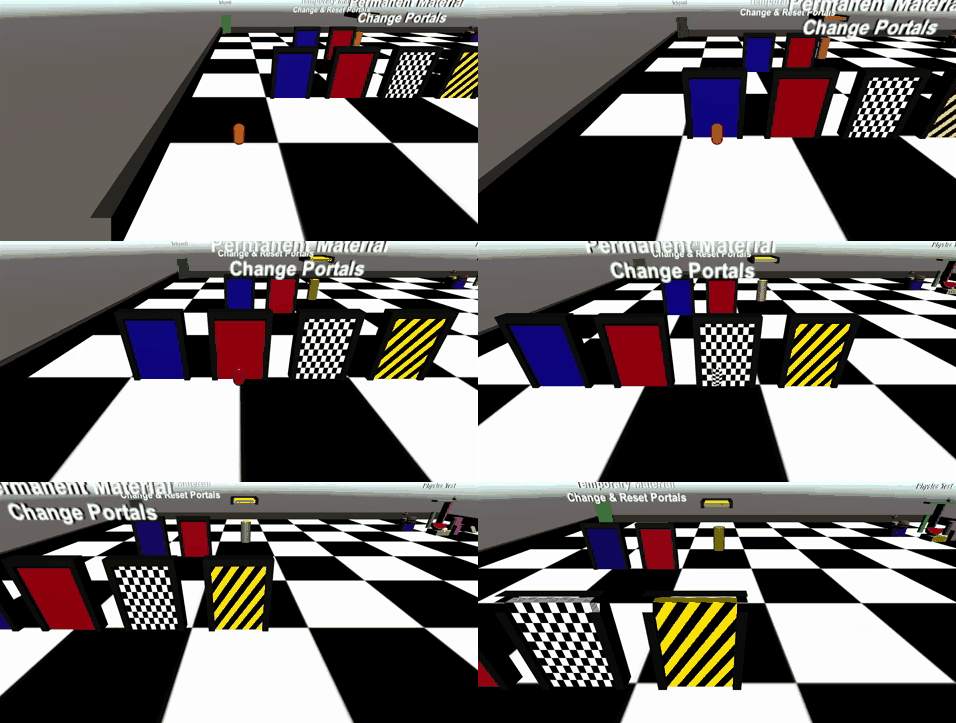
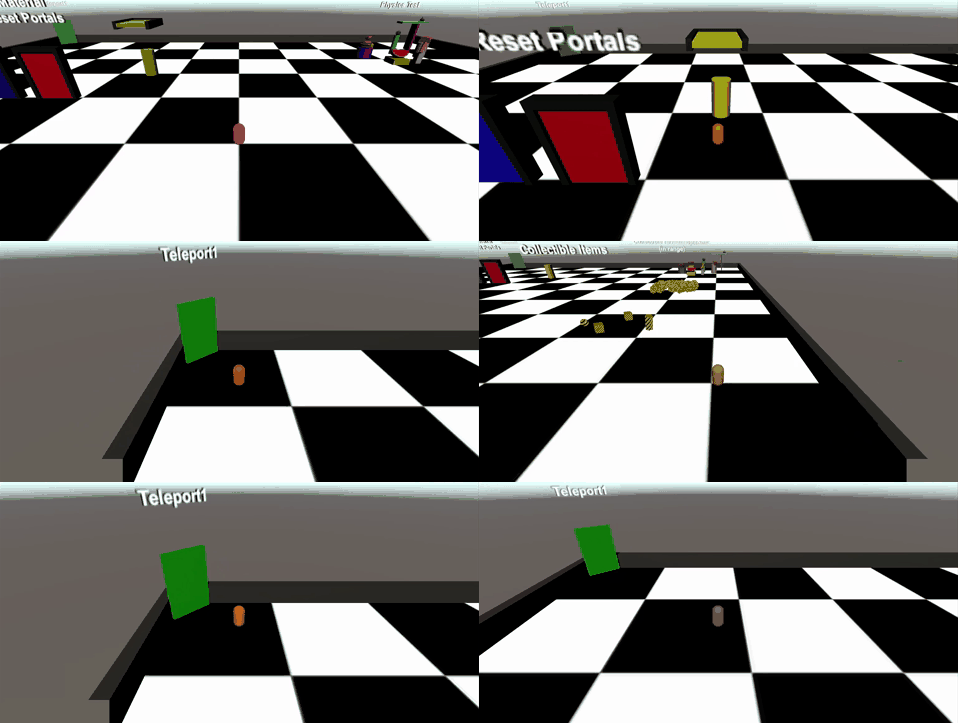
Two systems change the material of whatever capsule walks through a portal — TemporaryChangeMaterialOnTriggerSystem, which restores the original material on exit, and PersistentChangeMaterialOnTriggerSystem, which doesn’t.
Both are built on StatefulTriggerEvent, a buffered trigger event taken from Unity’s own UnityPhysicsSamples. Raw trigger events only tell you that an overlap is happening; buffering them and comparing against the previous frame gives you the exact frames of entry, stay and exit, which is what makes the temporary variant possible:
if (triggerEvent.State == EventOverlapState.Enter)
{
	var volumeRenderMesh = EntityManager.GetSharedComponentData<RenderMesh>(e);
	var overlappingRenderMesh = EntityManager.GetSharedComponentData<RenderMesh>(otherEntity);
	overlappingRenderMesh.material = volumeRenderMesh.material;
	commandBuffer.SetSharedComponent(otherEntity, overlappingRenderMesh);
}
Note that the exit branch restores the material from a reference entity, not from the one the capsule had before entering — so chaining several temporary portals always sends you back to your original colour rather than to the previous portal’s.
Spawning and Collectibles
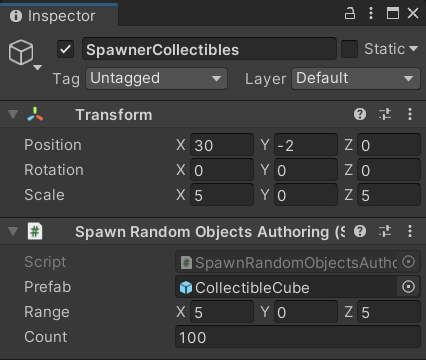
SpawnRandomObjectsAuthoring is an authoring component that instantiates an arbitrary number of entities at random points inside a volume, all configurable from the inspector — the conversion workflow turns those inspector fields into pure ECS data at bake time.
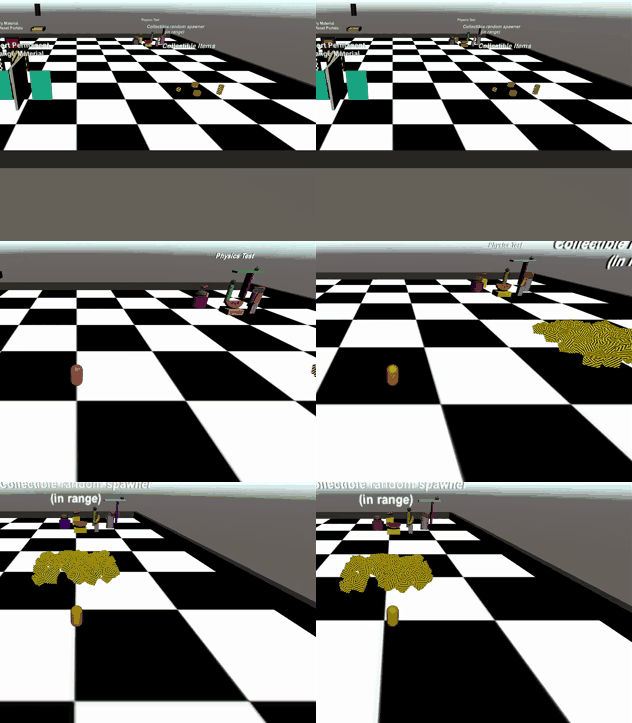
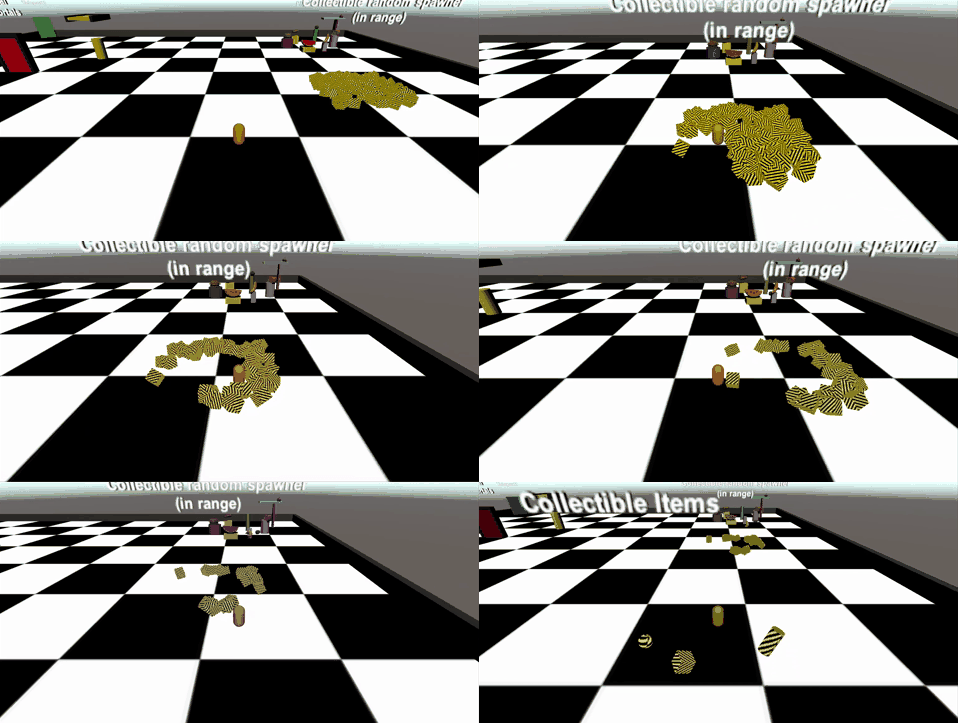
Collectibles close the loop between physics, networking and gameplay: PickUpSystem reacts to the trigger, bumps the PlayerScoreComponent of the capsule that touched it and tags the collectible with DeleteTagComponent, which DeleteCollectibleSystem then reaps. Splitting “mark for deletion” from “delete” is a very ECS thing to do — structural changes are expensive and are better batched at a known point in the frame.
Collectibles pick up
Standalone Builds
Building a DOTS application standalone required the com.unity.platforms.* packages and a Build Configuration asset rather than the usual Build Settings window. For a multiplayer application, NetCode reads the Server Build property together with the scripting define symbols to decide what it is producing — client only, server only, or a build that picks its role at runtime, which is what makes the headless server possible.
Performance
The prototype answered the question “can you actually build a game with this?”. To answer “is it faster?” I built a second, throwaway project: one scene per architecture, the same spawner component in both, and a pile of striped cubes rotating in place — as GameObjects driven by a MonoBehaviour in the first scene, as entities driven by a system in the second.
The rotation logic is deliberately identical in shape. Classic:
public class Rotator : MonoBehaviour
{
    public float speedX, speedY, speedZ;

    void Update()
    {
        transform.Rotate(speedX * Time.deltaTime, speedY * Time.deltaTime, speedZ * Time.deltaTime);
    }
}
ECS:
public class RotatorSystem : SystemBase
{
    protected override void OnUpdate()
    {
        float deltaTime = Time.DeltaTime;

        Entities.ForEach((ref Rotation rotation, in RotateComponent rc) =>
        {
            rotation.Value = math.mul(rotation.Value, quaternion.RotateX(math.radians(rc.speed.x * deltaTime)));
            rotation.Value = math.mul(rotation.Value, quaternion.RotateY(math.radians(rc.speed.y * deltaTime)));
            rotation.Value = math.mul(rotation.Value, quaternion.RotateZ(math.radians(rc.speed.z * deltaTime)));
        }).Run();
    }
}
Five configurations were measured, each one a single change away from the previous:
- GameObject — classic architecture, rotation inside
Update(); - ECS — entities, with the system’s lambda executed on the main thread via
Run(); - Jobs — same system, but
Schedule()d onto a single worker thread; - ParallelJobs —
ScheduleParallel(), spreading the work over all the worker threads; - Burst — the same parallel jobs, compiled to native code by the Burst compiler.
Everything ran on an Intel Core i7-7700HQ (4 cores, 8 logical processors, 2.80GHz), 16GB of RAM, a GeForce GTX 1060, on Windows 10 64-bit. For each configuration and each cube count I sampled 10 frames with the Unity Profiler and averaged them.
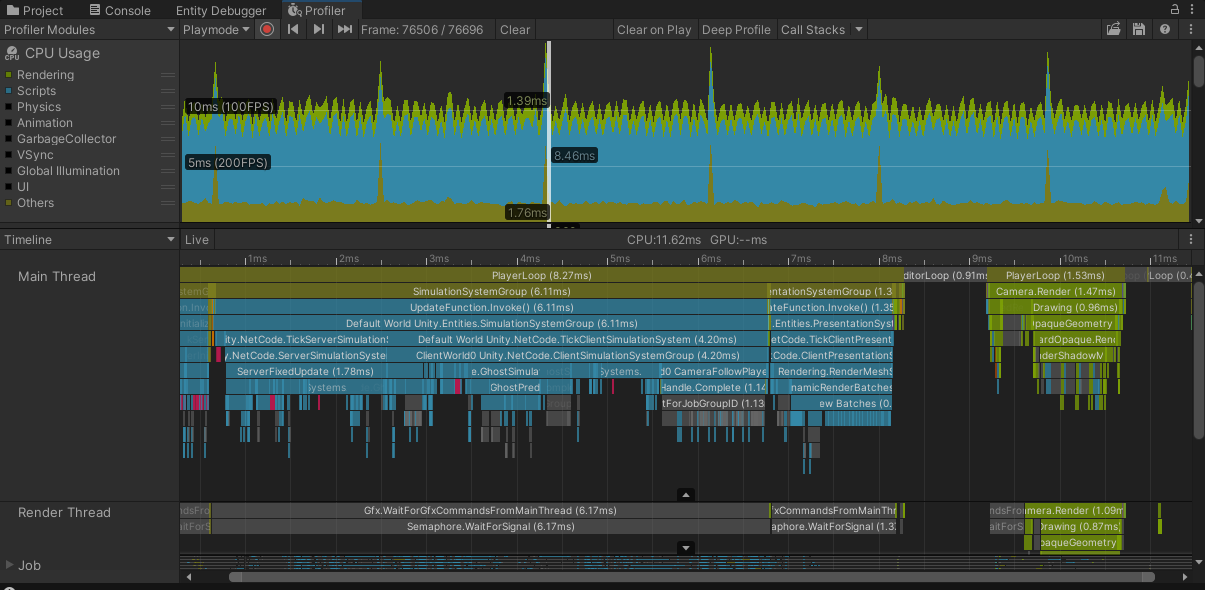
The Unity Profiler on a single frame of the prototype
Results
Frames per second:
| # cubes | 10 | 100 | 1.000 | 10.000 | 100.000 | 1.000.000 |
|---|---|---|---|---|---|---|
| GameObject | 320 | 285 | 155 | 27,5 | 2,5 | 0,1 |
| ECS | 320 | 300 | 176 | 34 | 3,9 | 0,5 |
| ECS + Jobs | 300 | 305 | 205 | 55 | 6,9 | 0,6 |
| ECS + ParallelJobs | 300 | 305 | 255 | 102 | 13,9 | 1,2 |
| ECS + Burst | 310 | 305 | 290 | 170 | 25,2 | 2,3 |
Total CPU time per frame (ms):
| # cubes | 10 | 100 | 1.000 | 10.000 | 100.000 | 1.000.000 |
|---|---|---|---|---|---|---|
| GameObject | 2,9 | 3,8 | 6,5 | 37,7 | 430 | 5000 |
| ECS | 2,9 | 3,2 | 5,7 | 30 | 267 | 2600 |
| ECS + Jobs | 3,5 | 3,7 | 4,4 | 17,9 | 157 | 1568 |
| ECS + ParallelJobs | 3,2 | 3,4 | 3,8 | 9,8 | 75 | 866 |
| ECS + Burst | 3,2 | 3,2 | 3,7 | 5,8 | 39,8 | 447 |
Time spent rotating the cubes (ms), 100.000 cubes:
| Configuration | Main thread | Worker threads |
|---|---|---|
| GameObject | 77,842 | — |
| ECS | 91,87 | — |
| ECS + Jobs | 0,043 | 96,98 (1 job) |
| ECS + ParallelJobs | 0,04 | 130,88 (8 jobs) |
| ECS + Burst | 0,045 | 9,193 (8 jobs) |
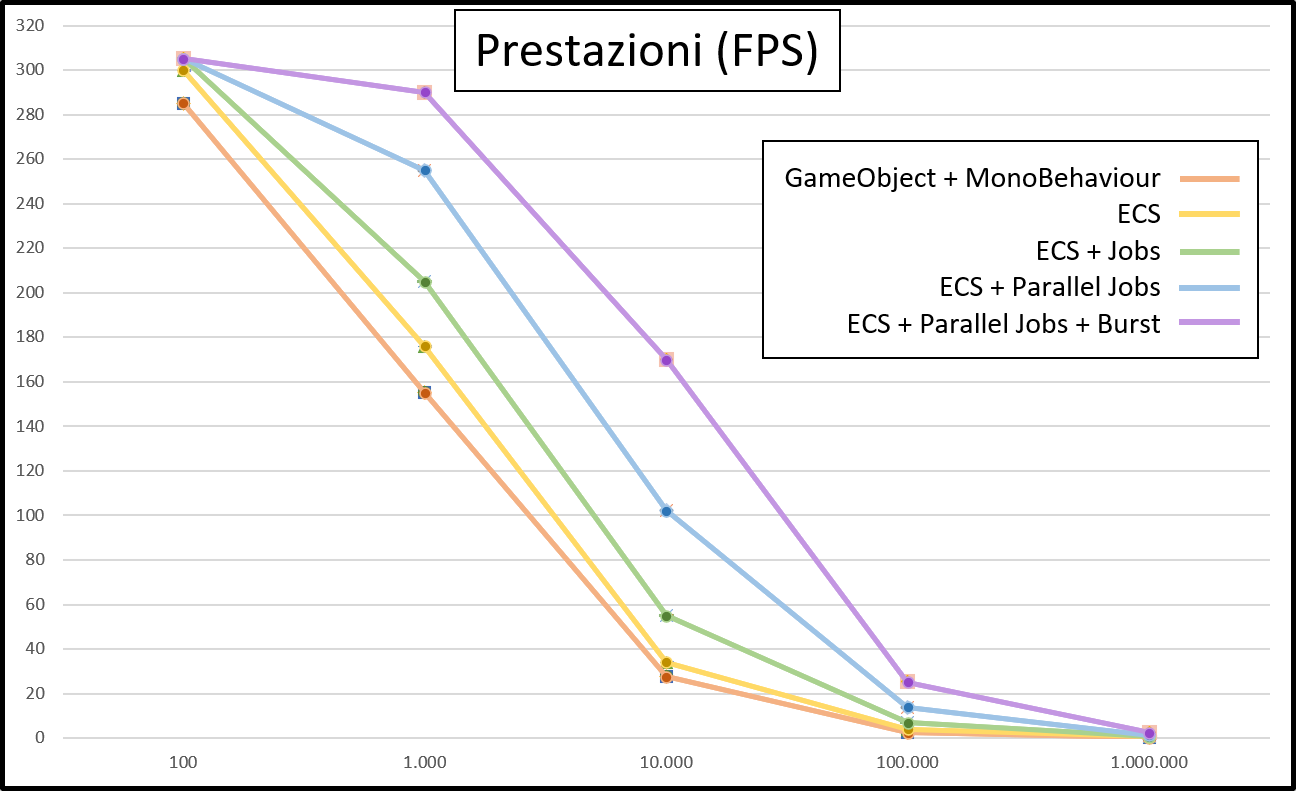
FPS by number of rotating cubes
Reading the numbers
Up to a thousand cubes everything is fine everywhere — the frame is dominated by rendering and the architecture barely shows. The gap opens exactly where you’d expect it to, and it keeps widening.
The most instructive row is the second one. Plain ECS is slower at rotating the cubes than the MonoBehaviour — 91,87 ms against 77,842 ms at 100.000 cubes — and yet the application runs faster, 3,9 FPS against 2,5. The reason is visible in the profiler: Rotator.Update() costs 0,001 ms, but Unity calls it 100.000 separate times, and that per-call overhead is what actually eats the frame. The system pays a single dispatch and then iterates over tightly packed data. Total CPU time per frame drops from 430 ms to 267 ms without touching the algorithm at all.
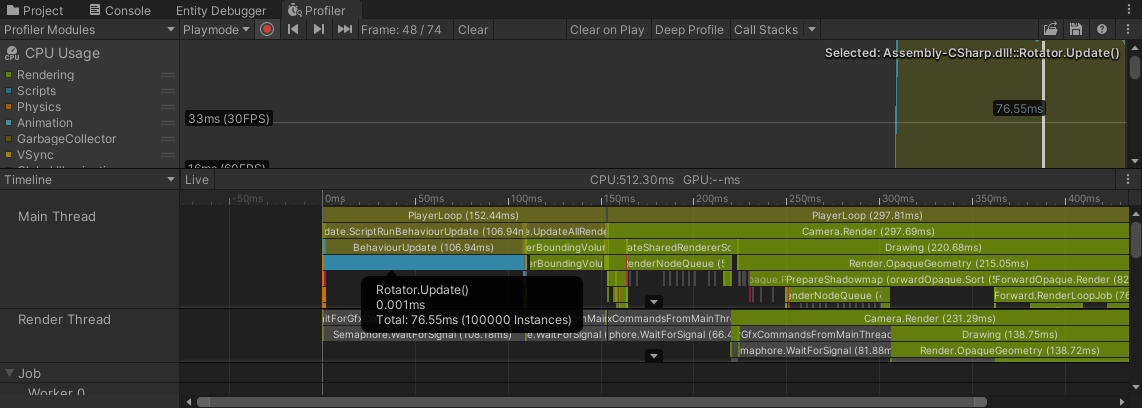
100.000 GameObjects rotated by a MonoBehaviour: 76,55 ms across 100.000 instances of Rotator.Update()
Moving the lambda to a job barely changes the work itself (96,98 ms on a worker thread) but frees the main thread almost entirely — 0,043 ms — and that alone takes the frame from 267 ms down to 157 ms. Going parallel then splits the work across 8 jobs: each single job gets slower in wall-clock terms (130,88 ms), because they’re all competing for the same cores, but they run concurrently, so the total frame time halves again.
And then there’s Burst. Enabling one editor option — Jobs > Burst > Enable Compilation — compiles the jobs’ IL to native code and drops the parallel job time from 130,88 ms to 9,193 ms, a factor of fourteen, for free. At 100.000 cubes the full stack runs at 25,2 FPS against the 2,5 of the classic architecture: ten times the framerate, with what is recognisably the same three lines of maths.
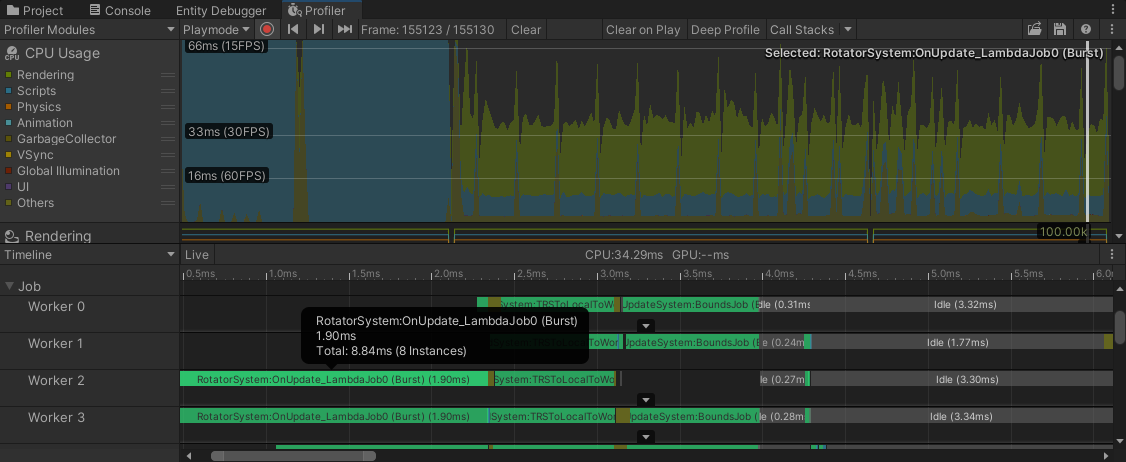
The same 100.000 entities with Burst-compiled parallel jobs: 8,84 ms across 8 worker threads
Known Issues and Future Developments
The prototype is a thesis project, and it shows in a few places — the third person camera occasionally flickers, physics simulations involving dynamic entities are not synchronised across clients, and standalone builds sometimes crash. The obvious next steps would be handling client disconnections, a main menu with a pre-match lobby, a player scoreboard and an inventory mechanic.
Everything here was written against DOTS as it existed in 2021, when the packages were still in preview and the API changed between minor versions. It has moved on considerably since — SystemBase and the ClientSimulationSystemGroup-era API of these snippets are not what you would write today — but the shape of the argument, and the numbers, held up.
The whole project, the prototype and the stress test, lives in the UnityDOTS-Thesis repository, together with the prototype documentation, the LaTeX sources of the paper and the presentation slides.
A thank you to my co-supervisor Andrea Garbugli, who suggested the topic and helped me through the writing.
alma mater studiorum unibo game multiplayer netcode unity dots ecs c# latex windows
2313 Words
2021-03-11 08:00